Moving from Vuforia to AR Foundation: Image Tracking and Sticky World Anchors in Unity

Vuforia has long been a popular choice for image-based augmented reality in Unity. It’s easy to configure, provides reliable image tracking, and makes positioning 3D content relative to a printed marker straightforward.

However, while developing an AR training application for iPad, we decided to explore a more native approach using Unity’s AR Foundation and Apple’s ARKit.

Our goal was simple: use a printed image to position a 3D model on a table, then allow users to move around and interact with it without the model continuing to follow the marker.

In this article, we’ll explain why we made the switch, how we recreated Vuforia’s convenient Editor preview, and how we used AR anchors to keep our content in place.

Why We Moved from Vuforia to AR Foundation

We’ve used Vuforia in previous projects, and it has served us well. However, our application was specifically designed for iPad, and most of the functionality we needed was already available through ARKit.

Moving to AR Foundation offered several advantages.

Native ARKit integration

AR Foundation integrates with Apple’s ARKit through Unity’s ARKit XR Plugin. This gives us direct access to native image tracking, world tracking, and anchor management through Unity’s XR APIs.

Fewer dependencies

Keeping our AR functionality within Unity’s XR ecosystem reduced the number of third-party systems we needed to maintain and simplified our project structure.

More control over content placement

Our previous Vuforia implementation kept models parented to their image targets. As the tracking system continuously updated the marker’s estimated position, the models could shift slightly.

We wanted the marker to establish the model’s initial position without controlling it afterwards. AR Foundation’s anchor system provided a straightforward way to separate image detection from content placement.

This behaviour isn’t exclusive to AR Foundation, but switching gave us an opportunity to improve our implementation.

Session anchors instead of an image parent

The useful part of the switch was ARAnchor, not image tracking by itself. ARKit image tracking tells you where the printed marker is. An anchor is a pose in the device’s world map. Once the model is parented to that anchor, ARKit keeps it in the room while the user walks around it, including after the marker is covered or leaves the camera.

Parenting the model to the tracked image makes the print the coordinate system for the whole session. Every correction to the marker moves the model. An anchor splits those jobs: the image is only the placement event, and world tracking holds the model afterwards. That is what lets us wait for a stable pose, call ARAnchorManager.TryAddAnchorAsync, and then ignore later image updates.

These anchors last for the AR session. They are not a saved map, and they are not shared between devices. That was enough for a training piece that is placed, used, and then closed.

Improved performance in our tests

After migrating our existing scenes, we noticed smoother tracking and visibly improved frame rates on the iPad.

This wasn’t a controlled benchmark, and performance will vary depending on the application and device, but the improvement was noticeable in our project.

Overall, AR Foundation gave us the functionality we needed, with more direct control over the AR experience.

1. Setting Up AR Foundation

For this project, we used:

  • Unity 6
  • AR Foundation 6.0.7
  • Apple ARKit XR Plugin 6.0.7
  • Universal Render Pipeline (URP)

Start by installing AR Foundation and Apple ARKit XR Plugin through Unity’s Package Manager. Enable ARKit under XR Plug-in Management for iOS.

Next, configure the scene:

  1. Create an XR Origin (Mobile AR) and ensure an AR Session is present.
  2. Add an AR Tracked Image Manager and AR Anchor Manager to the XR Origin.
  3. Create an XR Reference Image Library.
  4. Add your marker image and specify its physical dimensions in metres.
  5. Enable Keep Texture at Runtime in the library for our preview script.
  6. Assign the library to the AR Tracked Image Manager.

We’ll use Target_Image as the reference image name throughout this example.
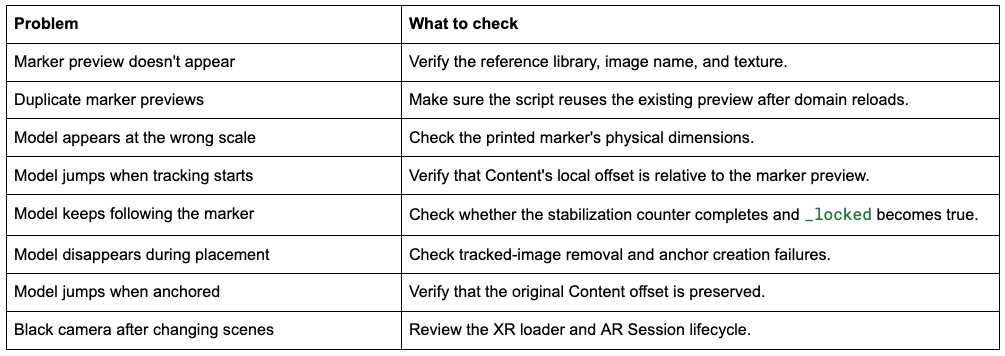
Unity Editor Hierarchy panel showing an augmented reality scene setup, including AR Session, XR Origin (AR), SceneController, XR Interaction Manager, AR_Content with ARObjects and MarkerPreview, AR_AnchorPlacement, Canvas, and EventSystem.

The physical dimensions are important. If your printed marker is 20 cm wide, its reference width should be 0.2 metres. Incorrect dimensions can affect tracking accuracy and the model’s apparent scale.

2. Recreating Vuforia’s Image Target Preview

One feature we immediately missed from Vuforia was its Editor preview.
Vuforia displays image targets at their physical size directly in the Unity scene, making it easy to align and scale 3D models.

AR Foundation doesn’t automatically provide this visual reference, so we created a simple script that reads the reference image’s texture and dimensions and generates a quad in the Editor.

Create a script called ArMarkerPreview.cs:


using UnityEngine;
using UnityEngine.XR.ARSubsystems;

[ExecuteAlways]
public class ArMarkerPreview : MonoBehaviour
{
    // Reference image library used by AR Foundation.
    [SerializeField]
    private XRReferenceImageLibrary markerLibrary;

    // Must match the image name in the reference library.
    [SerializeField]
    private string referenceImageName = "Target_Image";

#if UNITY_EDITOR
    private const string PreviewName = "MarkerPreview";
    private GameObject _preview;

    private void OnEnable()
    {
        // Only generate the preview in Edit mode.
        if (!Application.isPlaying)
            Rebuild();
    }

    private void OnDisable()
    {
        // Cancel pending rebuilds when the component is disabled.
        UnityEditor.EditorApplication.delayCall -= Rebuild;

        if (!Application.isPlaying)
            ClearPreview();
    }

    private void OnValidate()
    {
        // Called when Inspector values change.
        // Unity does not allow DestroyImmediate directly
        // during OnValidate, so delay the rebuild.
        UnityEditor.EditorApplication.delayCall -= Rebuild;
        UnityEditor.EditorApplication.delayCall += Rebuild;
    }

    private void Rebuild()
    {
        // Never create preview objects during Play mode
        // or when this component is disabled.
        if (this == null ||
            Application.isPlaying ||
            !isActiveAndEnabled)
            return;

        // After a domain reload, _preview may be null
        // even though the generated quad still exists.
        // Reuse it instead of creating a duplicate.
        if (_preview == null)
        {
            Transform existing = transform.Find(PreviewName);

            if (existing != null)
                _preview = existing.gameObject;
        }

        // No library means there is nothing to preview.
        if (markerLibrary == null)
        {
            ClearPreview();
            return;
        }

        // Find the reference image with the matching name.
        for (int i = 0; i < markerLibrary.count; i++)
        {
            XRReferenceImage image = markerLibrary[i];

            if (image.name != referenceImageName ||
                image.texture == null)
                continue;

            // Create a quad only if one does not exist.
            if (_preview == null)
            {
                _preview = GameObject.CreatePrimitive(
                    PrimitiveType.Quad);

                _preview.name = PreviewName;
                _preview.transform.SetParent(transform, false);
            }

            // Prevent this Editor preview from being
            // saved into the scene or included in a build.
            _preview.hideFlags = HideFlags.DontSave;

            // CreatePrimitive adds a collider automatically.
            // We only need a visual preview, so remove it.
            var collider = _preview.GetComponent();

            if (collider != null)
                DestroyImmediate(collider);

            // A Unity quad measures 1 x 1 units.
            // Scale it using the marker's physical size
            // from the reference image library (in metres).
            _preview.transform.localPosition = Vector3.zero;
            _preview.transform.localRotation = Quaternion.identity;
            _preview.transform.localScale =
                new Vector3(image.size.x, image.size.y, 1f);

            var renderer = _preview.GetComponent();

            // Prefer URP Unlit, with a fallback for
            // projects that use the built-in shader.
            var shader = Shader.Find(
                "Universal Render Pipeline/Unlit");

            if (shader == null)
                shader = Shader.Find("Unlit/Texture");

            if (shader == null)
                return;

            // Reuse the existing material when possible
            // instead of creating one on every rebuild.
            if (renderer.sharedMaterial == null ||
                renderer.sharedMaterial.hideFlags != HideFlags.DontSave)
            {
                var material = new Material(shader);

                // The material is only needed in the Editor.
                material.hideFlags = HideFlags.DontSave;

                renderer.sharedMaterial = material;
            }

            // Display the printed marker texture on the quad.
            renderer.sharedMaterial.mainTexture = image.texture;

            return;
        }

        // Remove the preview if no matching image was found.
        ClearPreview();
    }

    private void ClearPreview()
    {
        // Recover the generated object if the reference
        // was lost during a domain reload.
        if (_preview == null)
        {
            Transform existing = transform.Find(PreviewName);

            if (existing != null)
                _preview = existing.gameObject;
        }

        if (_preview == null)
            return;

        var renderer = _preview.GetComponent();

        // Clean up the temporary material so it does
        // not remain allocated after removing the preview.
        if (renderer != null &&
            renderer.sharedMaterial != null &&
            (renderer.sharedMaterial.hideFlags &
             HideFlags.DontSave) != 0)
        {
            DestroyImmediate(renderer.sharedMaterial);
        }

        // Remove the generated quad.
        DestroyImmediate(_preview);
        _preview = null;
    }
#endif
}

Attach the script to an empty GameObject called MarkerPlacement and assign the reference image library.

The script generates a quad using the image’s physical dimensions, allowing you to position your model just as you would with Vuforia.

It also handles a few important Unity Editor behaviours:

  • Reuses the existing preview after a domain reload instead of creating duplicate quads.
  • Uses HideFlags.DontSave to prevent the generated preview from being saved into the scene.
  • Runs the preview functionality only in the Editor.
  • Uses EditorApplication.delayCall to avoid modifying or destroying objects directly during OnValidate().

Positioning your 3D model

Create a Content object alongside the generated preview and place your model underneath it.

Your hierarchy should look like this:


MarkerPlacement
├── MarkerPreview (generated)
└── Content
    └── Your3DModel

Keep MarkerPlacement at position (0, 0, 0) and scale (1, 1, 1). By default, the generated marker preview stands upright in the Unity Scene view. To visualise the printed marker lying flat on a table, set MarkerPlacement rotation to (-90, 0, 0).

Position and rotate Content relative to the marker’s centre. The marker’s local X axis points right, Y points towards the top of the image, and Z points out of the printed surface. This means positioning a model above the marker requires moving it along local +Z, which corresponds to the marker’s surface normal. The next script stores Content’s local position and rotation and reapplies them when attaching it to the tracked image and world anchor, so your model maintains the correct offset regardless of how the preview is rotated in the Editor.

If Content is positioned under an unrelated parent, its local coordinates may not match the marker, causing the model to jump when tracking starts.

3. Making AR Content Stay in Place

Now comes the main challenge.

When AR Foundation detects an image, it creates an ARTrackedImage containing the estimated position and rotation of that marker.

We could parent our model directly to this object, but it would continue moving whenever the tracked image’s pose changed.

Instead, we’ll use a two-stage process.

First, follow the marker. When the image is detected, the model follows it briefly while tracking settles.

Then, lock the model. After a short period of continuous tracking, we create an AR anchor at the marker’s last known position and attach the model to it.

Once anchored, the content stops following subsequent image updates.

Creating the sticky anchor

Create a script called StickyImageAnchor.cs and attach it to the XR Origin.


using System.Threading.Tasks;
using UnityEngine;
using UnityEngine.XR.ARFoundation;
using UnityEngine.XR.ARSubsystems;

public class StickyImageAnchor : MonoBehaviour
{
    [SerializeField]
    private ARTrackedImageManager imageManager;

    [SerializeField]
    private ARAnchorManager anchorManager;

    [SerializeField]
    private Transform content;

    // Only respond to this reference image.
    [SerializeField]
    private string referenceImageName = "Target_Image";

    // Number of consecutive tracking frames required
    // before attempting to create an anchor.
    [SerializeField, Min(1)]
    private int stabilizationFrames = 15;

    private ARTrackedImage _image;
    private int _stableFrames;

    // Prevent further image updates from moving content
    // after placement, or while creating an anchor.
    private bool _locked;
    private bool _creating;

    // Last valid world-space pose of the tracked marker.
    private Pose _lastPose;

    // Preserve the position and rotation configured
    // relative to the marker in the Unity Editor.
    private Vector3 _contentOffset;
    private Quaternion _contentRotation;

    private void Awake()
    {
        // Save the original local offset before
        // changing Content's parent at runtime.
        _contentOffset = content.localPosition;
        _contentRotation = content.localRotation;

        // Content stays hidden until the marker is tracked.
        content.gameObject.SetActive(false);
    }

    private void OnEnable()
    {
        // Listen for tracked images being added,
        // updated, or removed by AR Foundation.
        imageManager.trackablesChanged.AddListener(
            OnImagesChanged);
    }

    private void OnDisable()
    {
        // Avoid receiving tracking callbacks when disabled.
        imageManager.trackablesChanged.RemoveListener(
            OnImagesChanged);
    }

    private void Update()
    {
        // Stop following the marker once anchored,
        // while anchor creation is in progress,
        // or before the target image is found.
        if (_locked || _creating || _image == null)
            return;

        // Tracking must remain valid for consecutive frames.
        // Any tracking loss resets the stabilization counter.
        if (_image.trackingState != TrackingState.Tracking)
        {
            _stableFrames = 0;
            content.gameObject.SetActive(false);
            return;
        }

        // Temporarily attach Content to the tracked image.
        // This allows the model to follow the marker
        // while ARKit refines its estimated position.
        content.SetParent(_image.transform, false);

        // Restore the offset defined in the Editor.
        ApplyOffset();

        content.gameObject.SetActive(true);

        // Cache the most recent marker pose in world space.
        // This is the position where we'll create the anchor.
        _lastPose = new Pose(
            _image.transform.position,
            _image.transform.rotation);

        // Count valid tracking frames in Update rather
        // than inside the tracked image callback.
        _stableFrames++;

        // Once the threshold is reached, attempt to
        // replace image parenting with a world anchor.
        if (_stableFrames >= stabilizationFrames)
            _ = LockAsync();
    }

    private void OnImagesChanged(
        ARTrackablesChangedEventArgs args)
    {
        // Check newly detected reference images.
        foreach (var image in args.added)
            Consider(image);

        // Check images whose tracking data has changed.
        foreach (var image in args.updated)
            Consider(image);

        // An image may be removed from AR Foundation.
        // Before anchoring, stop following it and wait
        // until a matching image is detected again.
        foreach (var removed in args.removed)
        {
            if (removed.Value == _image &&
                !_creating && !_locked)
            {
                _image = null;
                _stableFrames = 0;

                // Preserve the model's world pose while
                // detaching from the removed trackable.
                content.SetParent(null, true);
                content.gameObject.SetActive(false);
            }
        }
    }

    private void Consider(ARTrackedImage image)
    {
        // Once locked, the marker must no longer
        // influence the model's position.
        if (_locked || _creating)
            return;

        // Ignore all other images in the reference library.
        if (image.referenceImage.name != referenceImageName)
            return;

        // A newly detected image must complete its
        // own uninterrupted stabilization period.
        if (_image != image)
            _stableFrames = 0;

        _image = image;

        // Reset if AR Foundation reports limited
        // or unavailable tracking.
        if (image.trackingState != TrackingState.Tracking)
            _stableFrames = 0;
    }

    private async Task LockAsync()
    {
        // Prevent multiple simultaneous anchor requests.
        if (_creating || _locked)
            return;

        _creating = true;

        // Anchor creation is asynchronous.
        // Detach first so Content cannot be affected
        // if the tracked image is removed while awaiting.
        //
        // 'true' preserves Content's world transform.
        content.SetParent(null, true);

        // Ask the underlying AR system to create
        // a world anchor at the last tracked marker pose.
        var result =
            await anchorManager.TryAddAnchorAsync(_lastPose);

        // The scene or component may have been disabled
        // while the asynchronous request was running.
        // In that case, discard any anchor just created.
        if (this == null || !isActiveAndEnabled)
        {
            if (result.status.IsSuccess() && result.value != null)
                Destroy(result.value.gameObject);

            return;
        }

        if (result.status.IsSuccess() && result.value != null)
        {
            // The anchor was created successfully.
            // From now on, Content follows the world anchor
            // instead of the tracked image.
            content.SetParent(result.value.transform, false);

            // Restore the model's original local offset
            // relative to the anchor's position and rotation.
            ApplyOffset();

            content.gameObject.SetActive(true);

            // Prevent later image tracking updates
            // from reparenting Content to the marker.
            _locked = true;
        }
        else
        {
            // An anchor is not guaranteed to be created.
            // If it fails, reset the counter and try again
            // after another period of valid tracking.
            Debug.LogWarning(
                "AR anchor creation failed. Retrying after tracking stabilizes.");

            _stableFrames = 0;

            if (_image != null &&
                _image.trackingState == TrackingState.Tracking)
            {
                // Return to following the marker while
                // waiting for the next placement attempt.
                content.SetParent(_image.transform, false);
                ApplyOffset();

                content.gameObject.SetActive(true);
            }
            else
            {
                // Keep the model hidden until tracking
                // becomes available again.
                content.gameObject.SetActive(false);
            }
        }

        // Allow another attempt if placement failed.
        // On success, _locked prevents further attempts.
        _creating = false;
    }

    private void ApplyOffset()
    {
        // Use the same local position and rotation
        // whether Content follows the tracked image
        // or the final world anchor.
        content.localPosition = _contentOffset;
        content.localRotation = _contentRotation;
    }
}

Assign the AR Tracked Image Manager, AR Anchor Manager, and Content object in the Inspector.

Why this works

There are three important parts to the implementation.

1. Wait before anchoring

We use 15 consecutive frames of valid tracking before creating the anchor. This provides a short settling period, although it doesn’t guarantee that the estimated pose has completely stopped moving.

For debugging, you can set stabilizationFrames to 1 to attempt anchor creation on the first valid tracking frame.

For applications requiring greater precision, the system could be extended to measure positional and rotational changes between frames.

2. Detach before creating the anchor

Anchor creation is asynchronous. Calling content.SetParent(null, true) preserves the model’s world position while preventing it from remaining attached to a tracked image that might be removed.

Once the anchor is created, we attach the model to it and restore the original local offset.

3. Ignore tracking after locking

Once _locked becomes true, later image tracking updates no longer reposition the model.

If anchor creation fails, the script returns to image tracking and retries after another stabilization period, rather than leaving the content detached.

The result is a model that remains positioned in the AR world even after the printed image is no longer visible.

Important: This is a session-based world anchor. It does not permanently save the model’s position between application launches.

4. Testing on iPad

Although the Editor preview is useful for positioning models, image tracking and world anchoring need to be tested on a supported device.

For our application, we tested directly on an iPad.

A few things we learned:

Marker dimensions matter. Make sure the reference image library matches the actual printed marker.

Don’t anchor immediately. The initial tracking pose may still be settling. A short delay can improve initial placement.

Avoid unnecessary XR restarts. When switching between AR scenes, repeatedly stopping and restarting XR caused black camera screens in our application.

Keeping the XR loader running between scenes resolved our issue.

Editor lighting differs from real-world lighting. We used an Editor-only fill light to inspect models without affecting the final AR experience.

5. Common Issues

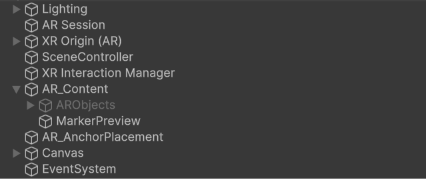
Troubleshooting table for Unity AR Foundation image tracking, listing eight common issues and recommended checks, including missing or duplicate marker previews, incorrect model scale, tracking and anchoring problems, disappearing models, and black camera screens after scene changes for Vuforia to AR Foundation

Final Thoughts

Moving from Vuforia to AR Foundation worked well for our iPad AR training application.

We gained more direct access to native ARKit functionality, reduced dependencies, and observed improvements in tracking stability and performance.

The biggest challenge was recreating a few conveniences we’d relied on in Vuforia, particularly the visual image-target preview, while changing how we handled content placement.

Once those were addressed, AR Foundation gave us the flexibility we needed.

Most importantly, separating image tracking from world anchoring allowed us to create an experience where the printed marker was only needed for initial placement, rather than controlling the content throughout the session.

The marker tells the application where to place the model. The anchor keeps it there.

We hope this guide has helped you understand how to use AR Foundation for image tracking and stable 3D content placement in Unity. Curious to see more of how we use Unity in interactive learning and game development? Explore our work here.

Looking to develop custom interactive solutions for your organisation? At Sliced Bread Animation, we specialise in crafting immersive experiences and innovative content. Get in touch to find out how we can bring your ideas to life!

Recent Posts