Using MediaPipe in Unity for Face Tracking, Pose Detection, and Background Replacement

Build Unity experiences that respond to people, not inputs with MediaPipe

What if your Unity project could react to a person instead of a button? We’ve used MediaPipe in Unity to build interactive installations where users walk up to a screen and instantly become part of the experience.

Their face is tracked, their movement drives visuals, and the system responds in real time. There’s no onboarding, no controller, no instructions. People just step in and interact.

That’s where MediaPipe becomes powerful. It shifts interaction from something users have to learn into something that feels immediate and natural.

In this tutorial, we’ll walk through how to use MediaPipe in Unity for three core tasks: face tracking, pose detection, and background segmentation. More importantly, we’ll focus on how these systems behave in real projects, where alignment, stability, and performance matter just as much as getting the model running.

The pipeline: how everything fits together

At a high level, every MediaPipe setup in Unity follows the same pattern:

Camera → MediaPipe → Landmarks or Mask → Unity visuals and logic

You capture frames from a camera, pass them through a MediaPipe model, and then use the output to drive UI, effects, or interaction.

It sounds simple, but most of the complexity comes from how those pieces connect. If something looks wrong on screen, it’s usually not the model. It’s how the data is being interpreted or displayed.

Understanding this pipeline early makes everything else easier to debug.
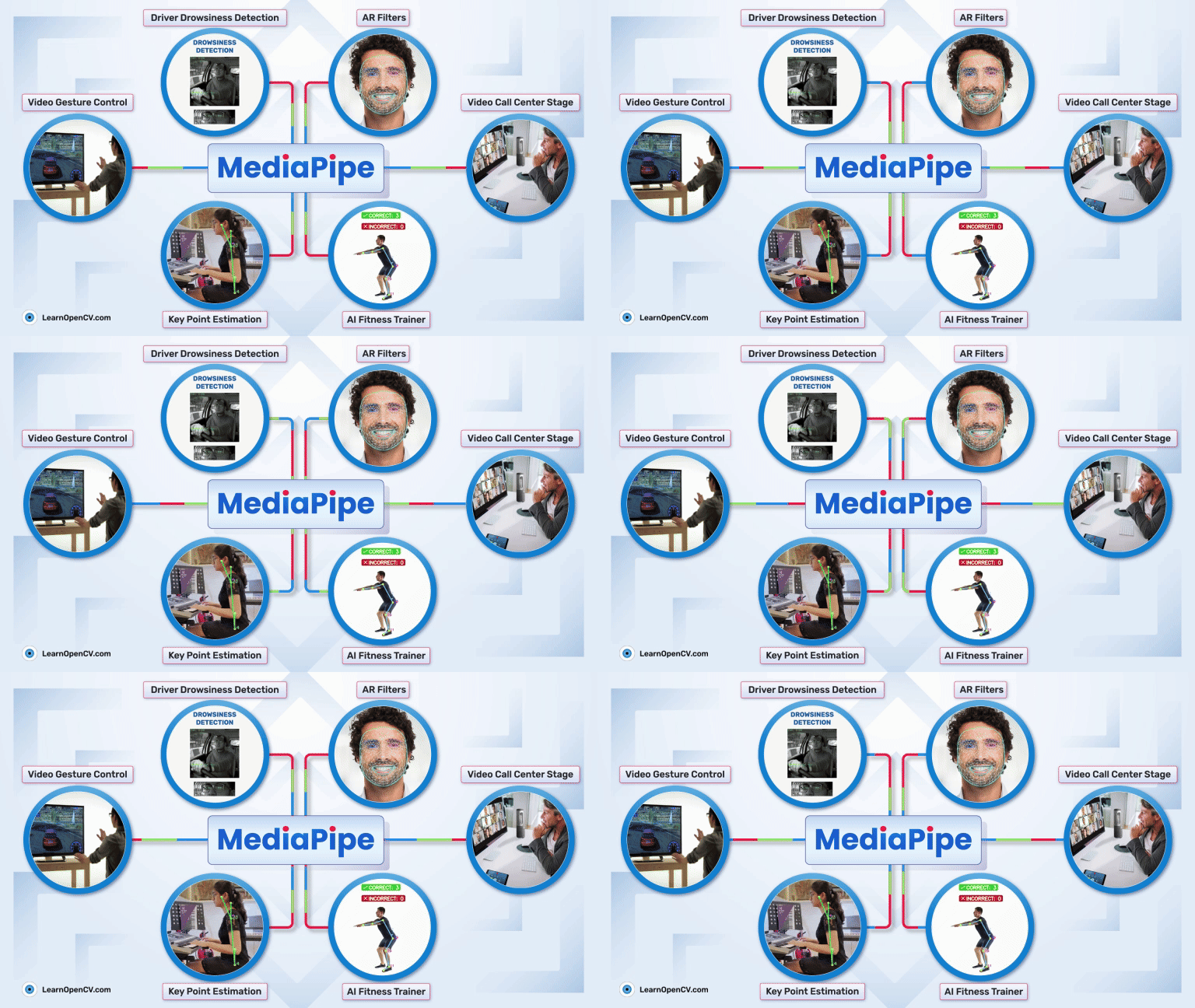
Infographic illustrating MediaPipe applications, including driver drowsiness detection, AR filters, video gesture control, video call centre stage, key point estimation, and AI fitness training, with example images connected around the central “MediaPipe” label.

1. What MediaPipe actually enables in Unity

In practice, most Unity projects only rely on a small subset of what MediaPipe can do. The majority of real-world use cases fall into three categories.

1.1. Face landmarks

Face landmark detection gives you a dense set of points across the face. Instead of just detecting a face, you get detailed information about specific regions like the eyes, lips, and contours.

This is what allows you to move beyond simple overlays and build effects that actually follow the shape of a person’s face. In our projects, this is often used for things like facial highlights, masks, or UI elements that feel anchored rather than stuck on.

1.2. Pose landmarks

Pose tracking provides a set of joints across the body, such as shoulders, elbows, and wrists.

This becomes useful as soon as you want the user to do something. Whether it’s raising their arms, following instructions, or matching a pose, these points give you a way to measure movement and respond to it.

In training or guidance scenarios, this is often where the real interaction happens.

1.3. Selfie segmentation

Segmentation separates the user from the background, giving you a mask of the person.

This is what enables background replacement and compositing. In installations, this is often the moment where the experience clicks, because the user can see themselves placed directly into a scene.

1.4. Where this becomes useful in real projects

MediaPipe becomes particularly valuable in scenarios where traditional input breaks down.

In public installations, you don’t have time to teach controls. People walk up, glance at the screen, and decide within seconds whether to engage. If interaction requires explanation, you’ve already lost them.

In training experiences, you often need to measure behaviour rather than button presses. Pose tracking allows you to guide movement and provide feedback in a way that feels much closer to real-world interaction.

In both cases, the key benefit is immediacy. The user is the input.

2. Installing MediaPipe in Unity

To get started, you’ll need a Unity-compatible MediaPipe integration.

A commonly used option is the MediaPipe Unity Plugin, available on GitHub.

This provides a working bridge between MediaPipe and Unity, including examples for face tracking, pose detection, and segmentation.

In most cases, teams either add the plugin via Git or include it directly in the project to keep versions consistent and builds predictable.

One thing that often gets overlooked is the model files. MediaPipe relies on these at runtime, and they’re typically stored in StreamingAssets. If they’re missing or incorrectly referenced, nothing will work in your build, even if everything looks fine in the editor.

3. Get the camera right first

Before adding any tracking, focus on the camera.

This is where most problems start. Decisions like whether the image is mirrored, whether it’s cropped or fitted, and whether you’re working in portrait or landscape all affect how your tracking data lines up later.

A simple webcam setup in Unity might look like this:


using UnityEngine;
using UnityEngine.UI;

public class WebcamPreview : MonoBehaviour
{
   [SerializeField] private RawImage previewImage;
   private WebCamTexture _webcam;

   private void Start()
   {
       if (WebCamTexture.devices.Length == 0)
       {
           Debug.LogError("No webcam found.");
           return;
       }

       _webcam = new WebCamTexture(WebCamTexture.devices[0].name, 1280, 720, 30);
       previewImage.texture = _webcam;
       _webcam.Play();
   }

   private void OnDestroy()
   {
       if (_webcam != null && _webcam.isPlaying)
           _webcam.Stop();
   }
}

This is just the starting point. Get this stable before doing anything else.

4. Face tracking with MediaPipe: start with debug, not effects

A common mistake is trying to build the final visual straight away.

Instead, start by drawing simple debug points. Your goal is to confirm three things: a face is detected, the points move correctly, and they line up with what you see on screen.

To do that, you’ll need to convert normalised coordinates into your UI space:


using UnityEngine;

public static class LandmarkUtils
{
   public static Vector2 NormalizedToRect(Vector2 normalized, RectTransform rect)
   {
       float x = (normalized.x - 0.5f) * rect.rect.width;
       float y = (normalized.y - 0.5f) * rect.rect.height;
       return new Vector2(x, y);
   }
}

Then draw markers:


using System.Collections.Generic;
using UnityEngine;

public class FaceDebugOverlay : MonoBehaviour
{
   [SerializeField] private RectTransform overlayRoot;
   [SerializeField] private RectTransform markerPrefab;

   private readonly List _markers = new();

   public void DrawLandmarks(List normalizedLandmarks)
   {
       while (_markers.Count < normalizedLandmarks.Count)
           _markers.Add(Instantiate(markerPrefab, overlayRoot));

       for (int i = 0; i < _markers.Count; i++)
       {
           bool active = i < normalizedLandmarks.Count;
           _markers[i].gameObject.SetActive(active);
           if (!active) continue;

           _markers[i].anchoredPosition =
               LandmarkUtils.NormalizedToRect(normalizedLandmarks[i], overlayRoot);
       }
   }
}

If these points line up, you’re in a good place. If they don’t, no visual effect will look right later.

5. Turning landmarks into actual effects

Once your debug points are aligned, you can start building something meaningful.

Instead of placing static graphics, you can construct regions from the landmarks themselves. Lips, cheeks, and eye areas can be turned into meshes or masks, which makes effects feel far more integrated.

A good approach is to build one region first, confirm it behaves correctly, and then layer additional effects on top. Trying to do everything at once usually leads to confusion.

6. Pose tracking: from detection to interaction

Pose tracking becomes useful when you turn it into feedback.

A simple starting point is to compare joint positions and turn that into a score. For example, checking whether wrists are above shoulders can indicate whether someone has raised their arms.


using UnityEngine;

public class SimplePoseScore : MonoBehaviour
{
   public float CalculateArmsRaisedScore(
       Vector2 leftShoulder,
       Vector2 rightShoulder,
       Vector2 leftWrist,
       Vector2 rightWrist)
   {
       float leftScore = leftWrist.y > leftShoulder.y ? 1f : 0f;
       float rightScore = rightWrist.y > rightShoulder.y ? 1f : 0f;
       return (leftScore + rightScore) * 0.5f;
   }
}

Displaying that score visually makes a big difference:


using UnityEngine;
using UnityEngine.UI;

public class PoseMeterUI : MonoBehaviour
{
   [SerializeField] private Image fillImage;

   public void SetScore(float score)
   {
       fillImage.fillAmount = Mathf.Clamp01(score);
   }
}

Users don’t need perfect accuracy. They need clear feedback.

7. Background replacement with segmentation

Segmentation allows you to separate the user from their environment and place them into a different scene.

There are two common ways to approach this. You can composite everything in a shader, which is usually cleaner and more efficient, or you can layer UI elements, which is easier when prototyping.

A simple material-driven approach might look like this:


using UnityEngine;
using UnityEngine.UI;

public class BackgroundComposite : MonoBehaviour
{
   [SerializeField] private RawImage outputImage;
   [SerializeField] private Texture backgroundTexture;

   private Material _runtimeMaterial;

   private void Awake()
   {
       _runtimeMaterial = Instantiate(outputImage.material);
       outputImage.material = _runtimeMaterial;
   }

   public void UpdateComposite(Texture webcamTexture, Texture maskTexture)
   {
       _runtimeMaterial.SetTexture("_MainTex", webcamTexture);
       _runtimeMaterial.SetTexture("_MaskTex", maskTexture);
       _runtimeMaterial.SetTexture("_BackgroundTex", backgroundTexture);
   }
}

8. Why things often look wrong in MediaPipe

Most issues in MediaPipe projects are not caused by the model. They come from mismatched coordinate systems.

Mirroring, rotation, cropping, and UI layout all play a role. If even one of these is off, your tracking will look incorrect.

The most effective way to debug this is to always keep visual overlays enabled. If your debug points match the image, everything else will follow.

9. Stability matters more than accuracy

Raw detection is noisy. If you react directly to it every frame, your UI will flicker, animations will re-trigger, and the experience will feel unstable.

Adding simple state handling with small delays makes a huge difference:


using UnityEngine;

public class PresenceGate : MonoBehaviour
{
   public float enterDelay = 0.2f;
   public float exitDelay = 0.3f;

   private float _presentTimer;
   private float _absentTimer;

   public bool IsConfirmedPresent { get; private set; }

   public void UpdatePresence(bool detected, float dt)
   {
       if (detected)
       {
           _presentTimer += dt;
           _absentTimer = 0f;

           if (!IsConfirmedPresent && _presentTimer >= enterDelay)
               IsConfirmedPresent = true;
       }
       else
       {
           _absentTimer += dt;
           _presentTimer = 0f;

           if (IsConfirmedPresent && _absentTimer >= exitDelay)
               IsConfirmedPresent = false;
       }
   }
}

In practice, this kind of logic matters more than small improvements in tracking accuracy.

10. Performance considerations

Running multiple MediaPipe tasks together can be expensive, especially on installation hardware.

You don’t need everything to run at full frame rate. In many cases, reducing update frequency has little visible impact but significantly improves performance.

Lighting, camera placement, and distance from the user also affect tracking quality more than people expect, so these should be considered early.

Finally, always test on the actual deployment machine. Editor performance can be misleading.

11. Lessons learned

After building systems with MediaPipe in Unity, a few patterns come up repeatedly:

  • Most problems are alignment issues, not tracking issues
  • Stability matters more than precision
  • Users respond to feedback, not perfect accuracy
  • Debug visualisation saves a huge amount of time
  • Focusing on these early leads to much smoother development.

12. A simple roadmap

If you’re building your first prototype, a good order is:

  1. start with the webcam
  2. add face landmarks and debug points
  3. add pose tracking
  4. add segmentation
  5. build one effect
  6. build one interaction
  7. combine everything into a stable flow

This keeps things manageable and easier to debug.

Conclusion

MediaPipe doesn’t just add tracking to Unity. It changes how users interact with your experience.

Instead of relying on buttons or controllers, you can build systems that respond directly to people. That makes experiences feel more immediate, more intuitive, and often more engaging.

The real challenge isn’t getting the model running. It’s making the system stable, aligned, and responsive in a real-world setting.

Once those pieces come together, MediaPipe becomes a powerful tool for building interactive and immersive Unity experiences.

References

Google MediaPipe. Solutions Documentation
homuler. MediaPipe Unity Plugin (GitHub Repository)

We hope this guide has helped you get started with face tracking, pose detection, and background replacement in Unity. Curious to see more of how we use Unity in interactive learning and game development? Explore our work here.

Looking to develop custom interactive solutions for your organisation? At Sliced Bread Animation, we specialise in crafting immersive experiences and innovative content. Get in touch to find out how we can bring your ideas to life!

Recent Posts